
Theme CSS
Last updated:
Mermaid.js supports a config.themeCSS block in frontmatter for applying custom CSS to a diagram’s rendered SVG.
Mermaid Studio recognizes and parses the contents as CSS, with highlighting, validation, and class-name completion driven by the classes your diagram actually uses.
When to use Theme CSS
Section titled “When to use Theme CSS”Custom themes set the colors a diagram renders with, and classDef handles per-element fills, strokes, and text colors.
Reach for themeCSS when you need CSS features neither of those can express:
- Keyframe animations (
@keyframes) for pulsing nodes, moving markers, or progressive stroke drawing - Pseudo-classes and pseudo-elements (
:hover,::before) for interactive or decorative styling - Descendant selectors (
.node rect,.edgePath path) that reach into the SVG Mermaid.js generates - CSS variables and anything else valid CSS can express
The block is plain CSS applied to the rendered SVG, so anything the browser’s style engine accepts works at render time.
Mermaid flowcharts don’t natively support pulse animations on links; with themeCSS you can add one in a few lines:
---config:  themeCSS: |-    @keyframes pulse {      0%, 100% { stroke-opacity: 1; }      50% { stroke-opacity: 0.25; }    }
    .flowchart-link {      stroke: #14b8a6 !important;      stroke-width: 2px !important;      animation: pulse 1.4s ease-in-out infinite;    }---flowchart LR  A[(Events)] --> B[Ingest]  B --> C[Enrich]  B --> D[Validate]  C --> E[(Store)]  D --> E  E --> F[Serve]
Writing Theme CSS
Section titled “Writing Theme CSS”Add a config.themeCSS key to your diagram’s frontmatter and use a YAML block scalar (|) so newlines are preserved.
The example below uses classDef for per-class fills and themeCSS for a drop-shadow on the node rectangles.
Flowchart classDef is comma-separated, so any value that contains a comma (like rgba(0, 0, 0, 0.35) inside drop-shadow(...)) breaks the parse. themeCSS accepts arbitrary CSS, commas and all.
---config:  themeCSS: |-    .node rect {      filter: drop-shadow(0 3px 6px rgba(148, 163, 184, 0.7));    }---flowchart TD  A[Request]:::user --> B{Valid?}  B -->|No| C[Reject]:::danger  B -->|Yes| D[Process]
  classDef user fill:#fef3c7,stroke:#b45309,color:#000  classDef danger fill:#fecaca,stroke:#b91c1c,color:#000
When the diagram renders, Mermaid.js applies the CSS to the resulting SVG.
Your themeCSS takes precedence over classDef declarations, so use it to override defaults or add styling hooks that the built-in Mermaid.js options can’t express.
Syntax Highlighting
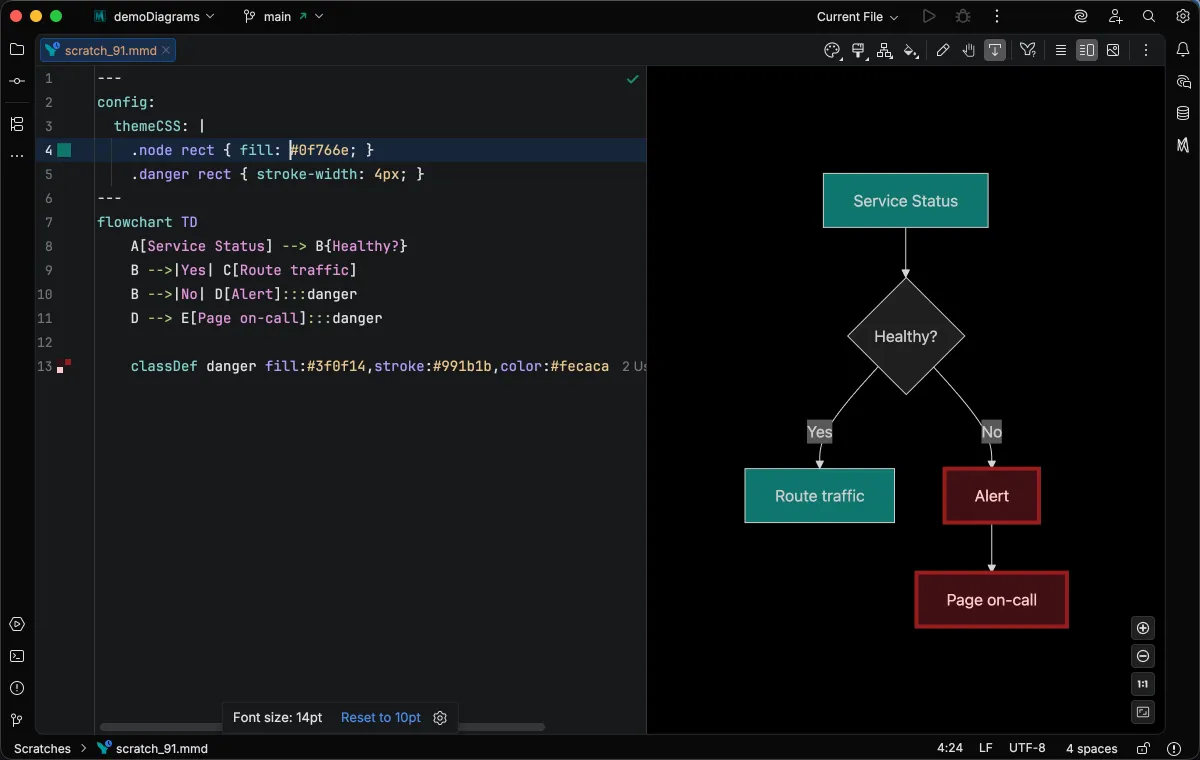
Section titled “Syntax Highlighting”CSS tokens inside the block are highlighted the same way as a standalone .css file: selectors, properties, values, and units all pick up your IDE’s CSS color scheme.
Color values get gutter swatches you can click to open the color picker.
Class-Name Completion
Section titled “Class-Name Completion”Trigger completion in a class selector position (after .) to see two kinds of suggestions:
- Your
classDefclasses — names you’ve declared in the same diagram, boosted to the top of the list and taggedclassDef - Rendered diagram classes — classes pulled from the rendered live preview (node types, flowchart markers, and so on), tagged
Mermaid
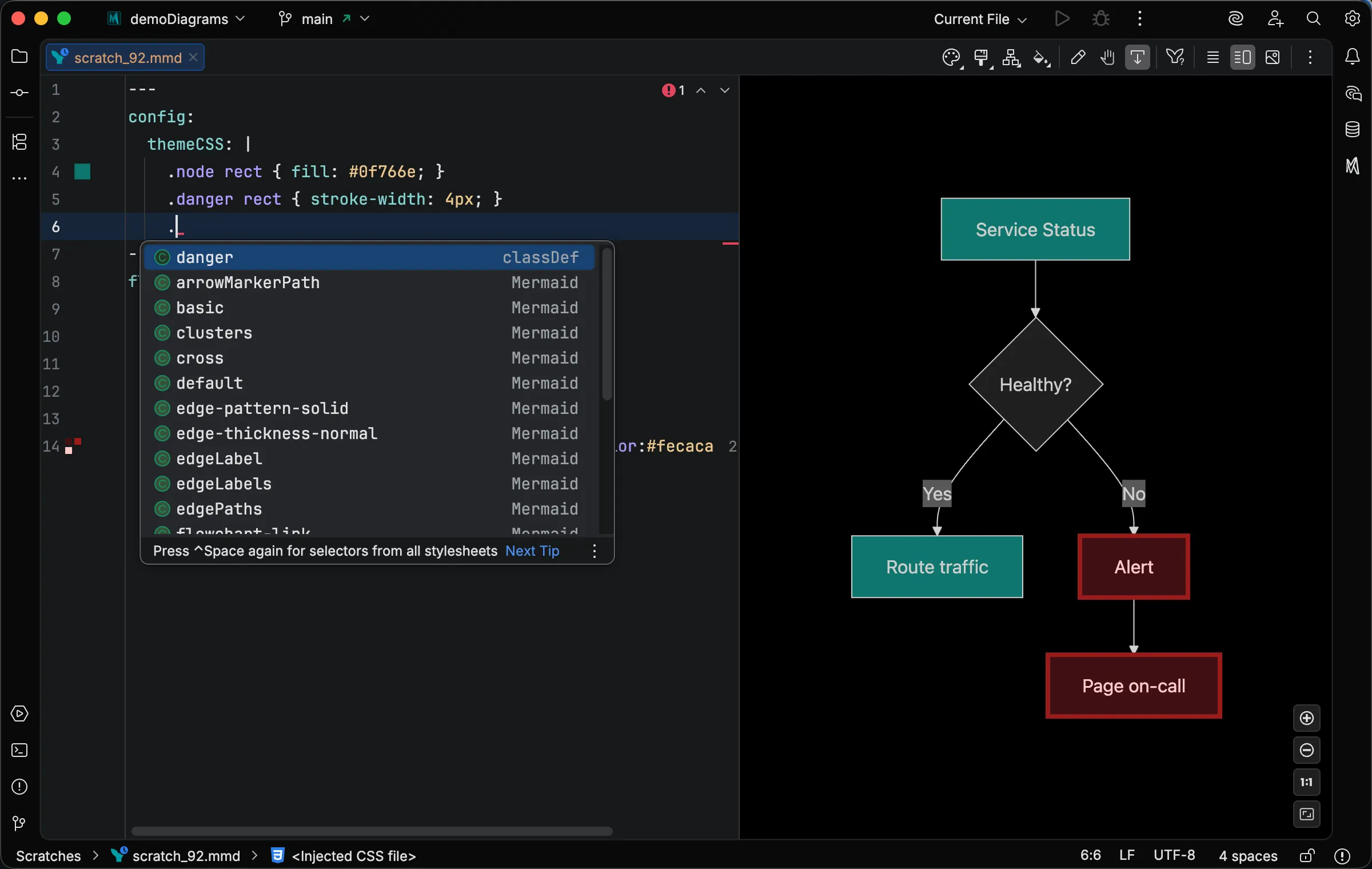
Completions from the live preview require it to have rendered at least once so the class list is populated; if the diagram fails to render, only your classDef names will appear.
Scope and Limitations
Section titled “Scope and Limitations”- All diagram types — works anywhere Mermaid.js accepts a
config.themeCSSfrontmatter key, which covers every supported diagram type (flowchart, sequence, class, state, ER, and the rest). - Standalone files only — available in
.mmdand.mermaidfiles; not in Mermaid code fences inside Markdown.
Related
Section titled “Related”- Custom Themes — bundled and your own color themes applied through frontmatter
- YAML Frontmatter — other frontmatter keys you can set alongside
themeCSS - Code Completion — other contexts where Mermaid Studio provides completions
- Style Pane — apply styles visually rather than writing CSS