
Preview
Last updated:
Mermaid Studio’s diagram preview pane provides interactive pan and zoom controls along with customizable appearance settings. Access preview settings at Settings > Tools > Mermaid Studio > Preview.
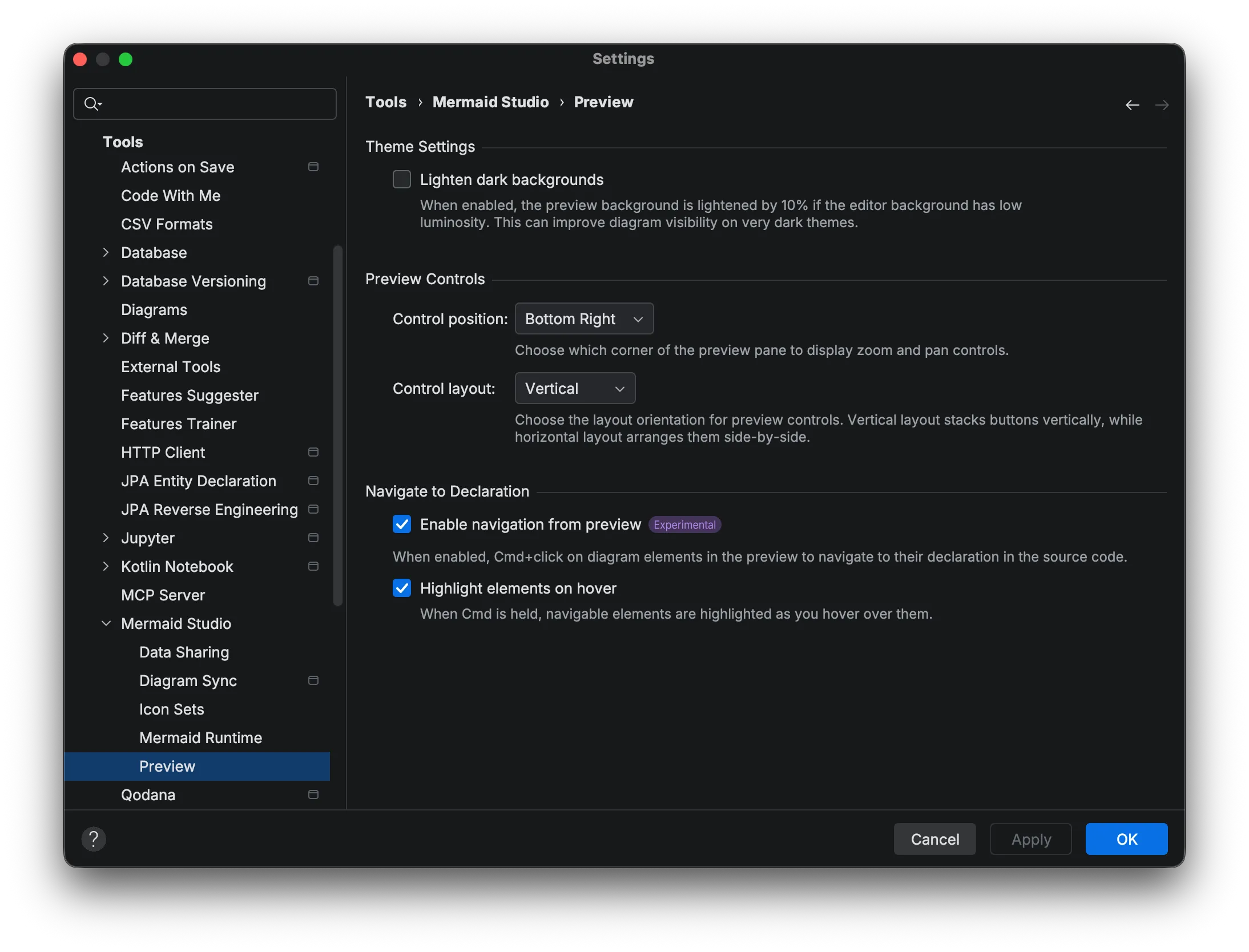
Theme Settings
Section titled “Theme Settings”Diagram colors come from the runtime appearance defaults, which pick adaptive light and dark themes, a look, and a font that apply across the live preview, Markdown preview, export, and print. The settings below tune how the preview pane itself displays those diagrams.
Background
Section titled “Background”Set the background color of the preview pane: Match Editor, Auto, Black, or White. Auto picks white or black based on the diagram’s resolved theme. Every editor follows this setting; there is no per-editor override.
The setting also decides which variant a standalone diagram without an explicit theme renders. With Auto or Match Editor, the light or dark variant follows your IDE theme. With White or Black, the forced canvas decides, so a dark IDE with a White background renders the light variant. The Appearance menu, the Switch Diagram Theme popup, and Match preview export, print, and copy all use that same variant. Markdown previews ignore this setting and follow the IDE theme; see Light and dark rendering.
Lighten Dark Backgrounds
Section titled “Lighten Dark Backgrounds”Some dark IDE themes have very dark gray or black backgrounds that can make certain diagram elements or edges difficult to see.
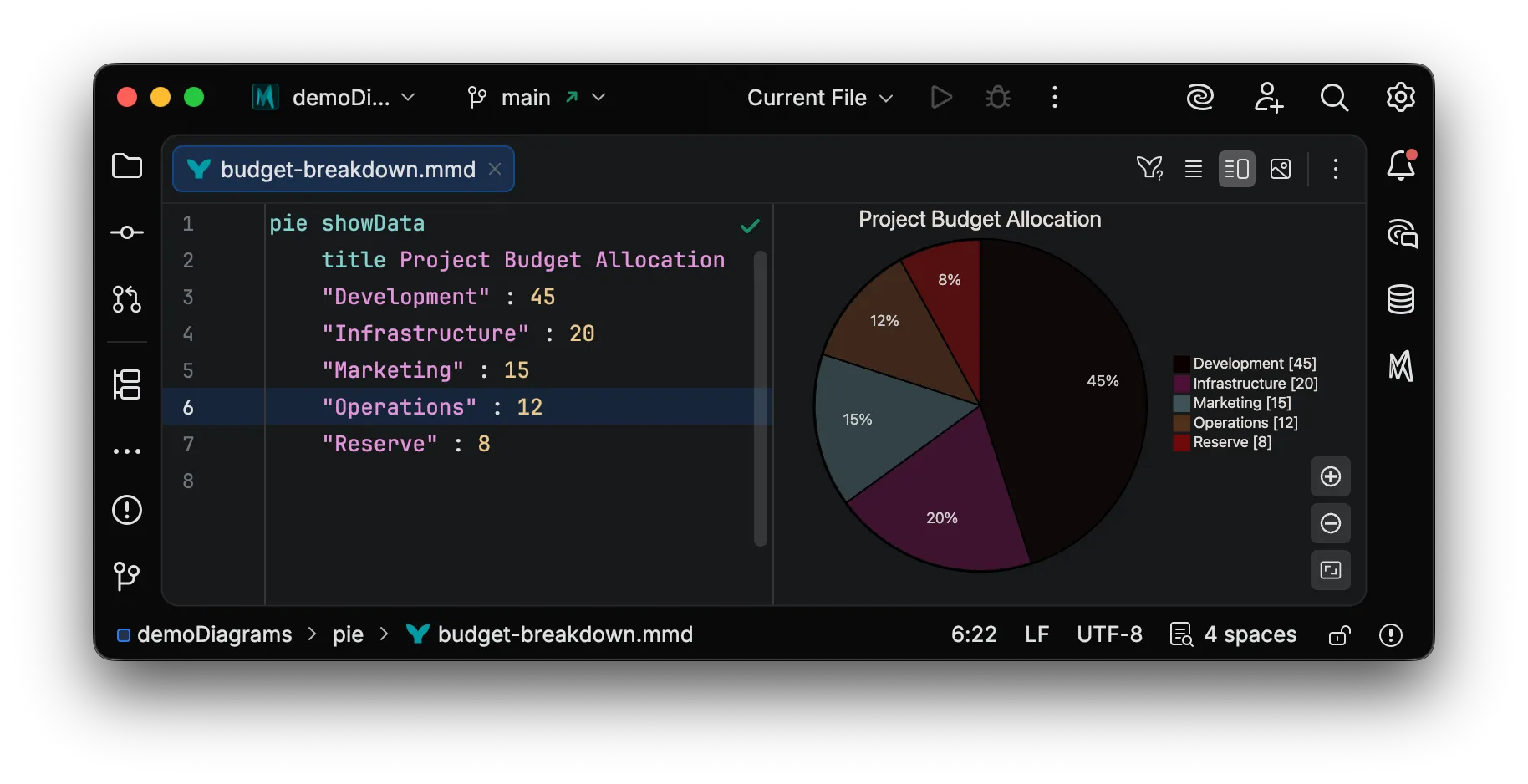
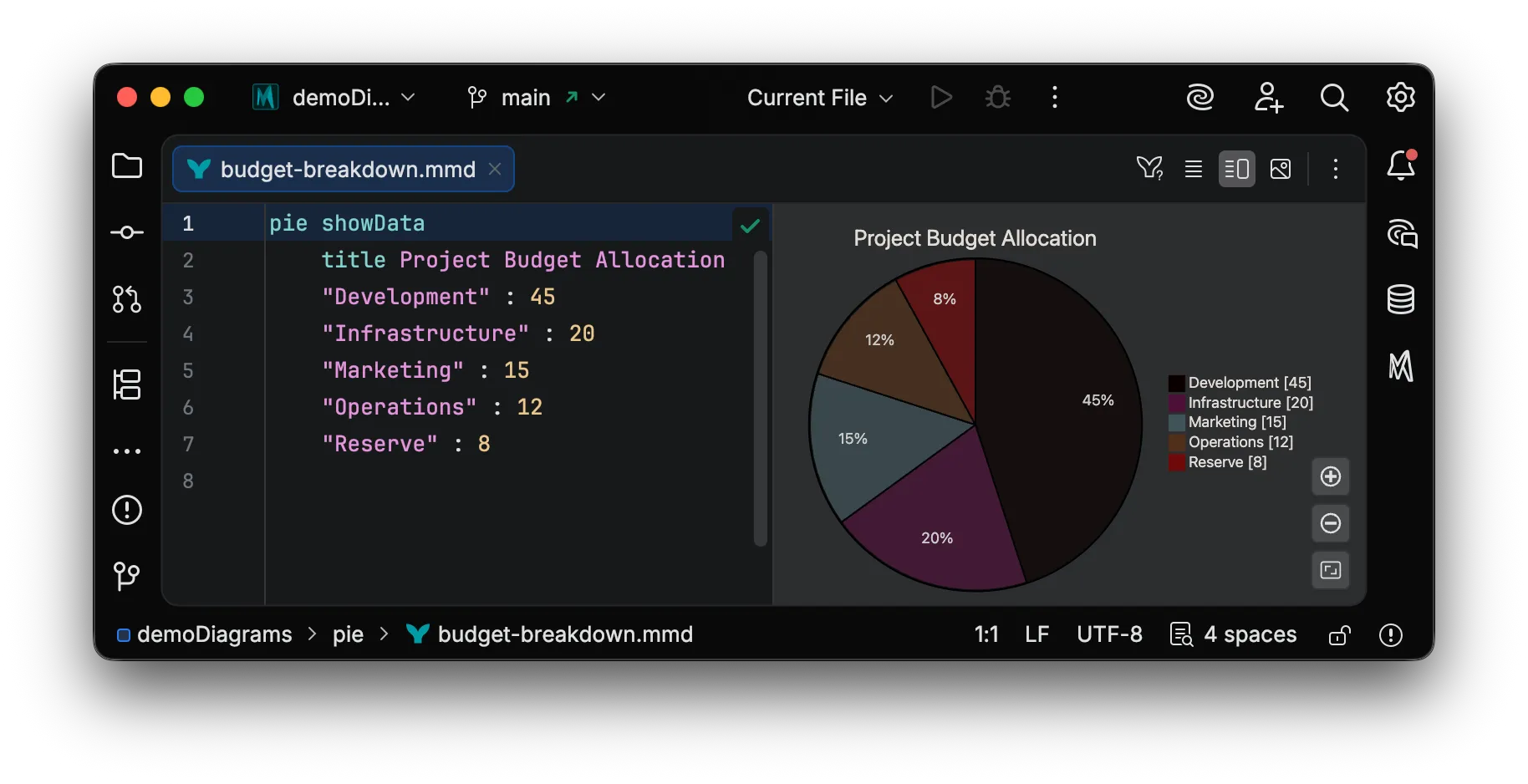
Enable Lighten Dark Backgrounds to lighten the preview background by 10%, improving diagram visibility.
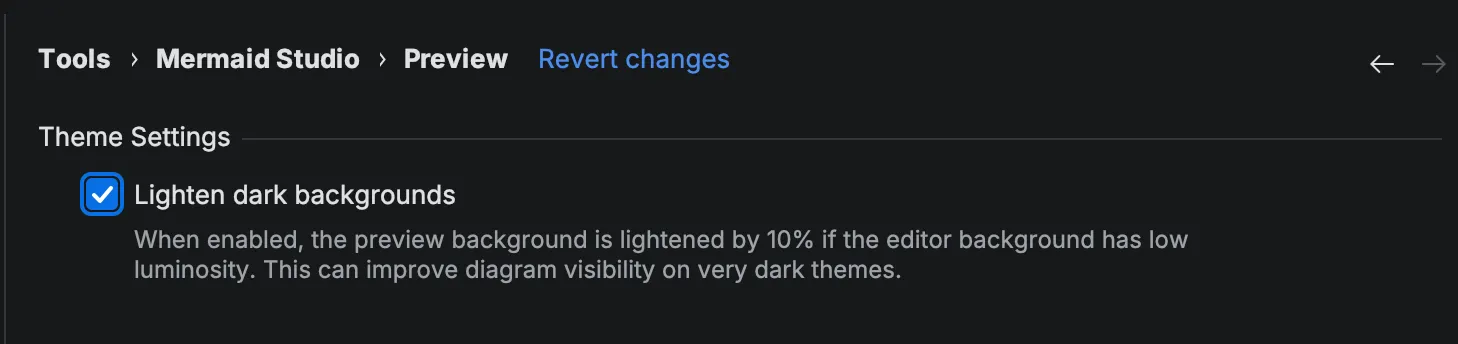
As seen below, enabling this option changes the preview background from very dark to a lighter shade, making black elements more visible:
Control Settings
Section titled “Control Settings”The preview includes zoom and pan controls that you can position and arrange to your preference.
Control Position
Section titled “Control Position”Choose where zoom and pan controls appear in the preview:
| Position | Description |
|---|---|
| Top Left | Controls in the upper-left corner |
| Top Right | Controls in the upper-right corner |
| Bottom Left | Controls in the lower-left corner |
| Bottom Right | Controls in the lower-right corner (default) |
Control Layout
Section titled “Control Layout”Choose how controls are arranged:
| Layout | Description |
|---|---|
| Vertical | Buttons stacked vertically (default) |
| Horizontal | Buttons arranged side-by-side |
Navigate to Declaration
Section titled “Navigate to Declaration”Navigate to Declaration lets you jump from a rendered element in the preview to its definition in the source code.
In preview mode (edit mode off), hold
| Setting | Description |
|---|---|
| Navigation from preview | Click elements to jump to their source definition |
| Highlight on hover | Show visual feedback when hovering over navigable elements |
For the full interactive editing experience including selection, drag-to-connect, and inline editing, see Visual Editing.
Trusted projects
Section titled “Trusted projects”The preview pane (along with export, print, copy, Markdown rendering, and Diagram Sync) stays disabled in untrusted projects.
Once you mark the project trusted, the preview re-activates automatically with no IDE restart required and no preview-specific setting to flip.
See Security for the full behavior and for the related Mermaid.js securityLevel config that controls what diagrams can do at render time.